
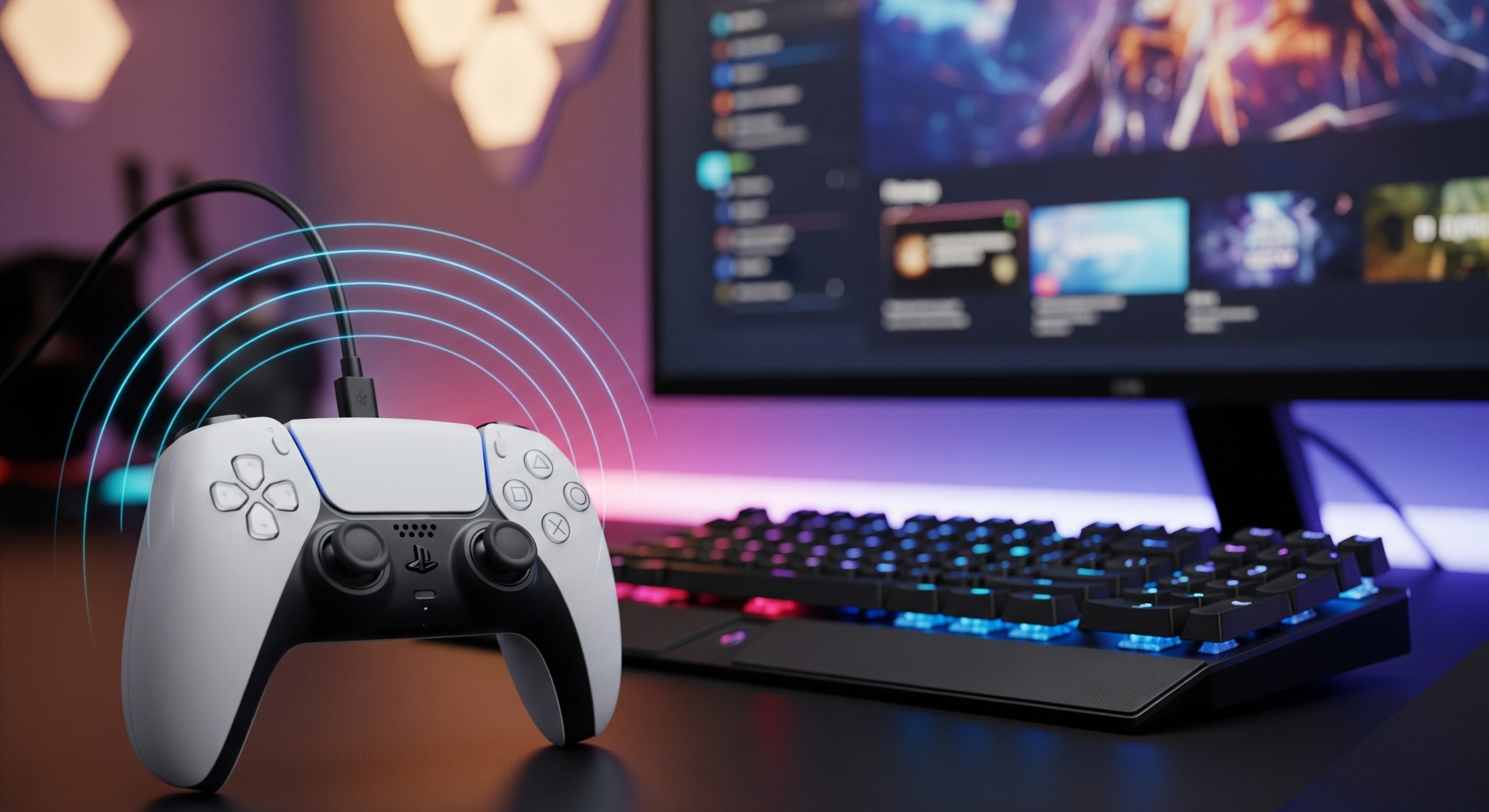
The PS5 Controller (DualSense) is widely considered one of the best controllers on the market. Fortunately, you don’t need a PS5 console to use it—it works excellently on Windows PC.
Here is the complete step-by-step guide to connecting your PS5 Controller via cable or Bluetooth.
Method 1: Connect PS5 Controller via Wired USB (Easiest)
The wired method is the simplest way to connect your PS5 Controller. It also guarantees the lowest latency (input lag) and keeps your controller charged while playing.
What You Need:
- A USB-C to USB-A cable (or USB-C to USB-C if your PC has a Type-C port).
Steps:
- Plug the USB-C end of the cable into the top of your PS5 Controller.
- Plug the other end into an available USB port on your PC.
- Windows will make a setup sound, and the PS5 Controller will light up.
- Done! Most modern games and launchers (like Steam) will detect the device immediately.
Method 2: Connect PS5 Controller via Bluetooth (Wireless)
If your PC has built-in Bluetooth or a Bluetooth dongle, you can use your PS5 Controller wirelessly.
Steps:
- Open Bluetooth Settings:
- On your PC, press the Windows Key, type “Bluetooth,” and select “Bluetooth and other devices settings.”
- Ensure Bluetooth is toggled On.
- Click “Add device” (or “Add Bluetooth or other device”) and select “Bluetooth”.
- Put PS5 Controller in Pairing Mode:
- Disconnect the USB cable if it’s plugged in.
- On the controller, press and hold the PS Button (center) and the Create/Share Button (small button to the top-left of the touchpad) at the same time.
- Hold them for about 3–5 seconds until the light bar around the touchpad begins to flash rapidly in short bursts.
- Pair the Device:
- Look at your PC screen. You should see “Wireless Controller” (or sometimes “PS5 Controller”) appear in the list.
- Click on it.
- The lights on the controller will stop flashing and glow a steady color. You are now connected.
Step 3: Configure PS5 Controller on Steam (Crucial Step)
While Windows recognizes the device, many games (especially older ones) won’t work unless you configure the PS5 Controller through Steam. Steam translates the signals into something every game can understand (often mimicking an Xbox controller).
- Open Steam.
- Go to Settings (top left corner > Settings).
- Click on the Controller tab.
- You should see your PS5 Controller listed under “Connected Controllers.”
- Enable “PlayStation Controller Support” (sometimes labeled “Enable Steam Input for PlayStation controllers”).
- Why? This allows you to customize the LED lights, use the trackpad as a mouse, and ensures the PS5 Controller works in non-PlayStation games.
Using PS5 Controller on Non-Steam Games (Epic, Game Pass)
If you are playing games from the Epic Games Store or Xbox Game Pass, the PS5 Controller might not work natively because Windows prefers Xbox controllers.
Option A: Add Game to Steam (Easiest)
- Open Steam.
- Click “Games” in the top menu bar > “Add a Non-Steam Game to My Library.”
- Select your game from the list.
- Launch the game through Steam, and it will use Steam’s drivers for your PS5 Controller.
Option B: Use DS4Windows (Advanced) If Option A doesn’t work, use DS4Windows, a free open-source program that tricks your PC into thinking your PS5 Controller is an Xbox 360 controller.
- Download DS4Windows from https://github.com/Ryochan7/DS4Windows/releases.
- Install the required drivers (ViGEmBus) when prompted.
- Launch the app with your PS5 Controller connected.
Troubleshooting Common Issues
1. No Sound / Audio Stopped Working
The Problem: When you plug in the device, Windows often mistakenly switches your default audio output to the PS5 Controller’s built-in speaker. The Fix:
- Click the Speaker Icon in your Windows taskbar (bottom right near the clock).
- Click the arrow to change the output device.
- Switch it from “Wireless Controller” back to your Speakers or Headphones.
2. Adaptive Triggers & Haptic Feedback Not Working
The Reality: The advanced features (resistance triggers, detailed vibration) generally only work via Wired USB connection and only on specific supported games (like Marvel’s Spider-Man, Returnal, or Ratchet & Clank).
- If you play via Bluetooth, the PS5 Controller will function like a standard controller without the special trigger effects.
3. Updating the Firmware
To ensure the best compatibility, update your PS5 Controller using the official Sony tool.
- Download: Firmware updater for DualSense wireless controller.
- Official Firmware Updater: PlayStation.net Firmware Tool
- DS4Windows (GitHub): DS4Windows Releases
- Steam Controller Guide: Steam Support
READ ALSO; JKUAT Degree Courses and Cluster Points